Get a task done by asking
It taps, scrolls and types, then sends you a screenshot.
tapswipetype_textscreenshot
Tetherfleet gives an AI agent a real phone to work on. Connect Claude, ChatGPT, Cursor, VS Code or another MCP client to its remote MCP server, and the assistant can see your phones, run your saved automations and drive a rented Android phone for you.
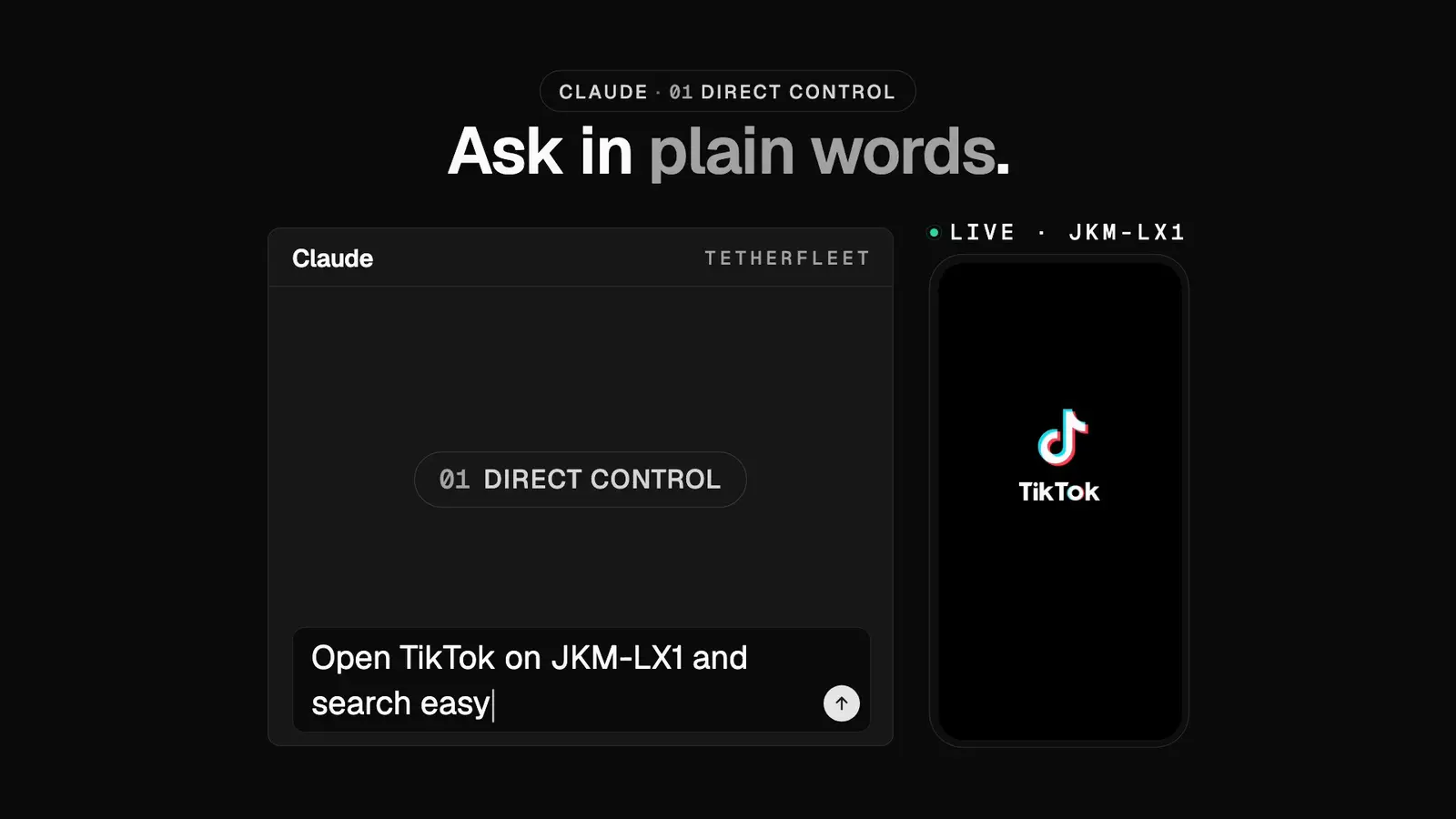
It taps, scrolls and types, then sends you a screenshot.
tapswipetype_textscreenshotSave what you did together as an automation.
record_flowsave_flowDescribe the routine. It builds it for you.
create_flow_from_templateupdate_flowEvery morning or every few hours. It reports back.
schedule_automationlaunch_automationget_run_logAdd it to your client, sign in, and pick what the assistant may do.
https://api.tetherfleet.com/mcpStreamable HTTP. Sign in is OAuth 2.1 with PKCE and dynamic client registration, so most clients need only the address. A client that can set headers may send Authorization: Bearer rd_live_… with a scoped API key from Settings, Developer instead.
The Add to Claude link fills in the name and address for you. Claude Free allows 1 custom connector. On Team or Enterprise, an Owner adds it first.
Add to Claudeclaude mcp add --transport http tetherfleet https://api.tetherfleet.com/mcp--scope user to use Tetherfleet in every project./mcp, pick tetherfleet and choose Authenticate. Your browser opens.Custom MCP servers depend on your ChatGPT plan. In Business, Enterprise or Edu workspaces, an admin may need to allow them first.
Open ChatGPT pluginsOr run this in a terminal:
code --add-mcp '{"name":"tetherfleet","type":"http","url":"https://api.tetherfleet.com/mcp"}'Other MCP clients: add a remote MCP server (streamable HTTP) with the address. The client finds sign in on its own.
An assistant can do exactly what its key allows, and nothing more.
The assistant gets its own key with the scope you picked: which phones and which tools. Only an Owner or Admin can allow a connection.
Every tool takes dryRun, which returns the planned effect and changes nothing.
Renting or releasing a phone and posting wait until an Owner or Admin approves the exact call in Settings, Approvals. The assistant cannot approve its own calls, and skipping approval is off unless you tick it.
Each call is written to the audit log under the assistant’s key, and so are the connection, a refusal and a disconnect.
Disconnect in Settings, Developer and the app loses access at once.
Every tool the server offers, as JSON, with no sign in: GET https://api.tetherfleet.com/v1/mcp/manifest
Yes. Through Tetherfleet's MCP server an AI agent uses a physical Android phone in the USA on its own 5G SIM, not an emulator. It can take screenshots, read the screen, tap, swipe, type, open apps and run saved automations, within what its key allows.